Exported by the iOS App After importing, edit the numbers in Calvance.
When to use it
For a rectangular aquarium measured on the inside, up to the actual waterline. This English example uses inches and US liquid gallons. Displacement is your measured or estimated effective volume, not a fixed allowance for all tanks. Save the tank and bucket parameters for later changes.
Inputs
Inputs
Default
Internal tank length (in)
24
Internal tank width (in)
12
Actual water depth from the inner bottom (in)
14
Effective water displaced by substrate and decor (gal US)
1.5
Chosen water-change percentage (%)
25
Usable bucket capacity (gal US)
2
Calculation method
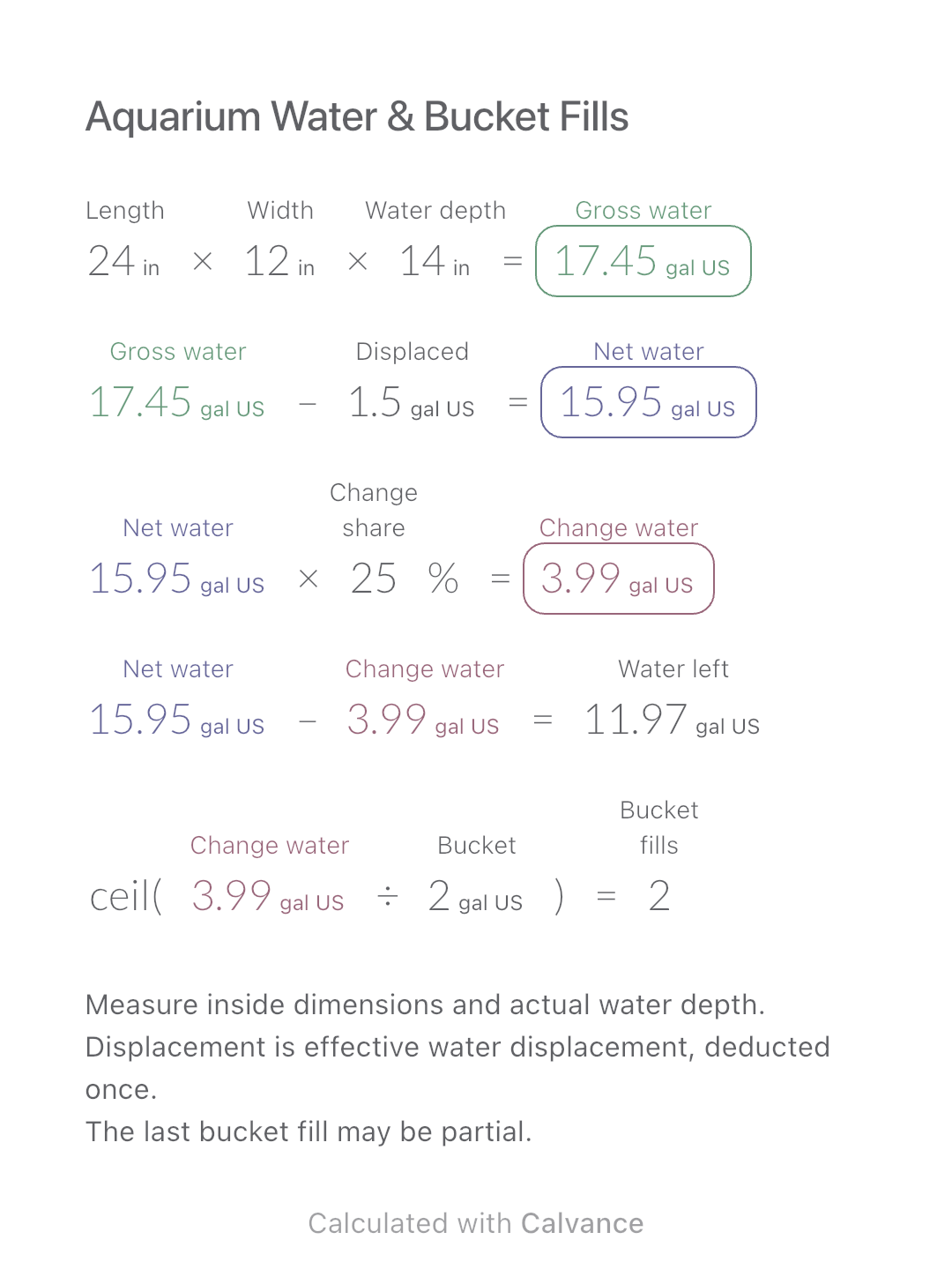
Multiply internal length, width and actual water depth, then subtract effective displacement. Multiply net water by your chosen change percentage; divide that amount by usable bucket capacity and round up. At 24 × 12 × 14 in, gross water is 192/11 US gal. Subtracting 1.5 US gal leaves 351/22 US gal. A 25% change is 351/88 US gal, about 3.99, requiring two fills of a 2 US gal bucket. The last fill may be partial.
24 [Internal tank length in] × 12 [Internal tank width in] × 14 [Actual water depth from the inner bottom in] → Geometric water volume before displacement gal US
Geometric water volume before displacement gal US-1.5 [Effective water displaced by substrate and decor gal US] → Estimated net water volume gal US
Estimated net water volume gal US × 25 [Chosen water-change percentage]% → Water volume to replace gal US
Estimated net water volume gal US-Water volume to replace gal US → Water remaining after draining gal US
ceil(Water volume to replace gal US/2 [Usable bucket capacity gal US]) → Bucket fills needed, including a partial fill
Change one input
Change only the water-change share from 25% to 30%. Water to replace rises from about 3.99 to 4.79 US gal, and bucket fills rise from two to three. Tank dimensions, displacement and bucket capacity stay unchanged.
Result
Default
Changed
Geometric water volume before displacement (gal US)
17.45
17.45
Estimated net water volume (gal US)
15.95
15.95
Water volume to replace (gal US)
3.99
4.79
Water remaining after draining (gal US)
11.97
11.17
Bucket fills needed, including a partial fill
2
3
Results are displayed to at most two decimal places; later formulas use unrounded values.
Scope and limits
Measure inside dimensions and actual water depth.
Displacement is effective water displacement, deducted once.
The last bucket fill may be partial.
Dimensions and net water must be positive; displacement must be nonnegative and smaller than gross water. Choose 0–100% and a positive bucket capacity. Zero and 100% are mathematical boundaries, not maintenance advice. Porous substrate is not a solid block: its full geometric volume is not automatically its water displacement. For measured net water, replace the net-volume expression with that value. US liquid gallons differ from imperial gallons. This estimate recommends no change frequency, livestock plan or chemical dose.
Download and import into Calvance to edit the numbers. The canvas does not reject every invalid input; check the stated ranges.
Common questions
Why not use the volume printed on the tank?
It can differ from water actually present because of internal dimensions, waterline and displaced volume. Measured net water is preferable.
Must every bucket be full?
No. The count rounds up; fill the final bucket only with the remaining required amount.
How to import your template
We recommend using the latest version of Calvance.
Save the file. Choose Download template and save the .calvx file to Files on your iPhone or iPad. From a computer, you can send it to your device with AirDrop.
Open Import. In All Canvases in Calvance, tap the add button to open the template screen, then choose Import.
Choose the file. Select the saved .calvx file to create your own canvas. Importing uses one canvas from your allowance.
Edit and check. Check the results against the worked example, then add your numbers. Duplicate the canvas to keep different versions.
Estimate a perfect-bound book’s spine and full cover dimensions from page count, paper caliper and bleed. Compare changes and download a reusable Calvance canvas.