
Worked exampleExported from Calvance
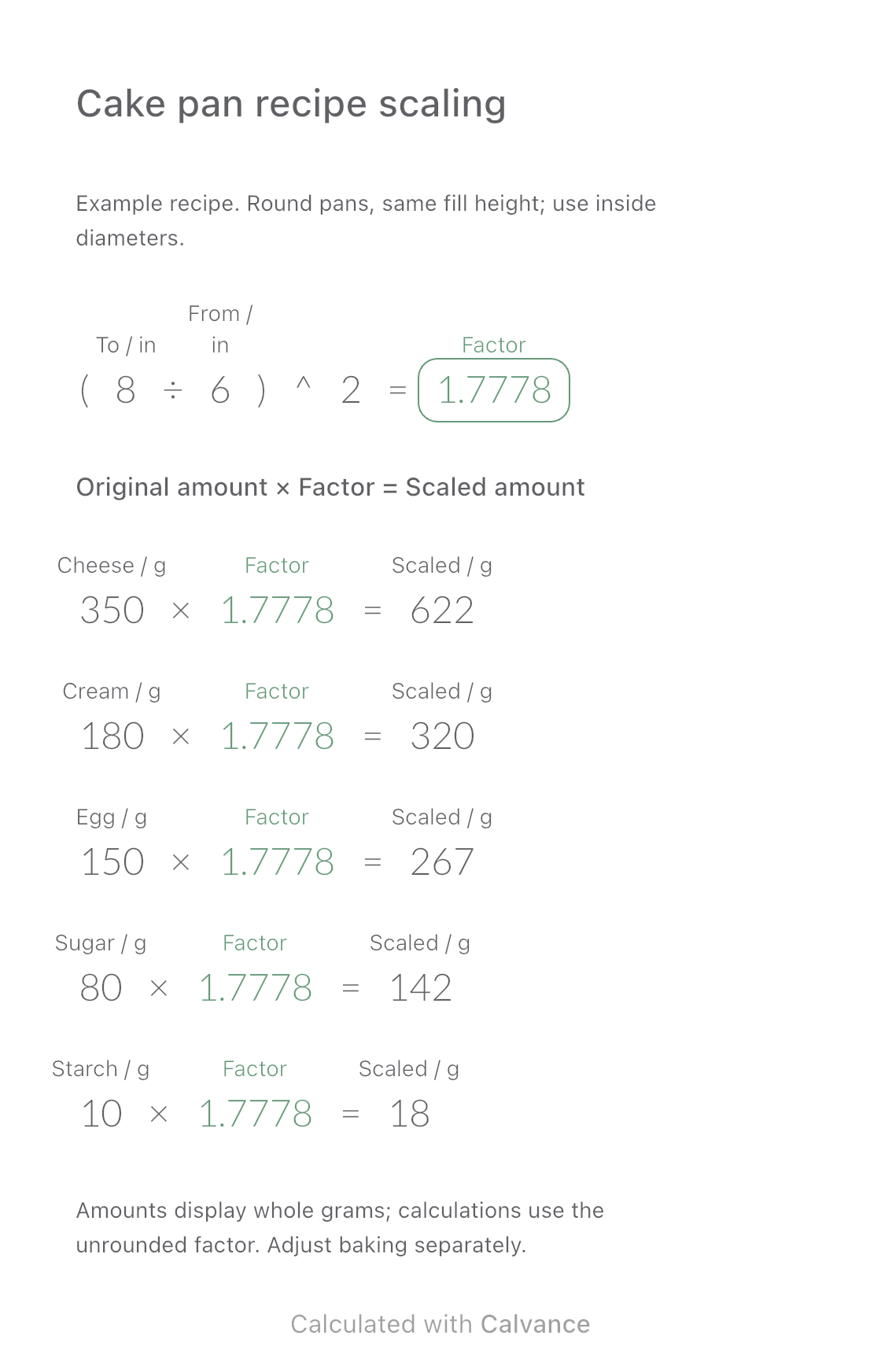
Cake Pan & Recipe Scaling
A different pan size, adjusted ingredient amounts. Change the target diameter to update the scale factor and five ingredients.
View template and methodEstimate a perfect-bound book’s spine and full cover dimensions from page count, paper caliper and bleed. Compare changes and download a reusable Calvance canvas.
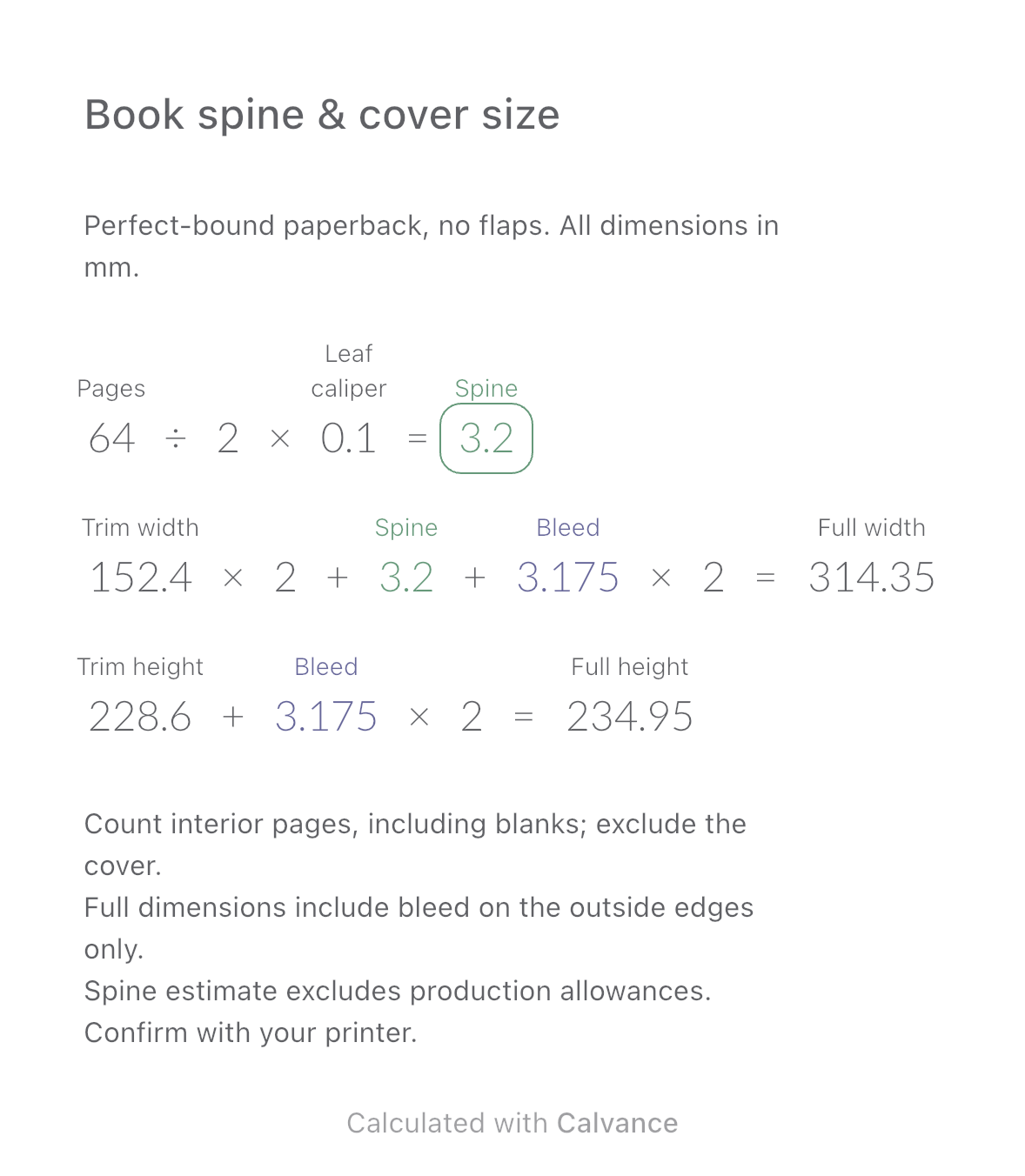
Exported from the default 64-page canvas through the actual Calvance iOS App. Dimensions are estimates, not production specifications. After importing, edit the numbers in Calvance.
Use this template while planning a paperback cover without flaps. Changing the interior page count updates the estimated spine and full cover width together; changing bleed updates both full dimensions. It calculates dimensions, not artwork or a print-ready file.
The US example uses a 6 × 9 inch trim size converted to 152.4 × 228.6 mm, and 1/8 inch bleed converted to 3.175 mm. All canvas dimensions are in mm. Start with 64 interior pages and an illustrative leaf caliper of 0.10 mm. Pages must be positive even integers, caliper and trim dimensions positive, and bleed nonnegative. Check these conditions yourself; they are not enforced by the canvas.
| Input | Default |
|---|---|
| Interior pages | 64 |
| Leaf caliper (mm) | 0.10 |
| Trim width (mm) | 152.4 |
| Trim height (mm) | 228.6 |
| Bleed per outside edge (mm) | 3.175 |
Spine estimate = interior pages ÷ 2 × thickness of one leaf. Full width = 2 × trim width + spine + 2 × bleed. Full height = trim height + 2 × bleed. A leaf has two page surfaces, hence division by two. Bleed surrounds the complete back–spine–front spread, with no extra bleed at the spine joins. Dependent formulas use unrounded values.
64 ÷ 2 × 0.10 = 3.2 mm
152.4 × 2 + 3.2 + 3.175 × 2 = 314.35 mm
228.6 + 3.175 × 2 = 234.95 mm
The Ex Why Zed cover setup guide illustrates the back–spine–front layout and outside bleed. Use your printer’s confirmed spine and file requirements for the actual production job.
The download starts at 64 pages. Compare 128 pages with the original bleed, then a separate 64-page case with 5 mm bleed. More pages affect spine and width, not height. More bleed changes width and height, not the spine.
| Result (mm) | 64 pages | 128 pages | 64 pages · 5 mm bleed |
|---|---|---|---|
| Estimated spine | 3.2 | 6.4 | 3.2 |
| Full width | 314.35 | 317.55 | 318 |
| Full height | 234.95 | 234.95 | 238.6 |
This is a simplified estimate for a perfect-bound paperback without flaps, using one uniform interior stock. Saddle stitching, hardcovers, flaps and mixed stocks require another model.
The spine estimate excludes glue, cover-stock thickness, compression, milling and other production allowances. Minimum spine size and page-count multiples depend on the printer. A mathematically valid value is not approval for binding.
Confirm the final spine, bleed and layout with your printer before production. Bleed is image extension beyond trim, not a white border or a safe margin. This template creates no crop marks, safe zones or artwork.
Count every interior page surface, including blank pages, but exclude the cover. Here 64 pages mean 32 leaves. A leaf is one finished piece with two sides, not a large press sheet. Confirm the final imposed page count with your printer.
No. GSM measures mass per area, not caliper. Stocks with the same GSM may have different thicknesses. Use the actual leaf caliper supplied or confirmed by the printer; 0.10 mm is only the example input.
Import the CALVX file into Calvance and check the default results before entering your own specifications. Duplicate a canvas to keep different editions. Imported and duplicated canvases count toward your plan’s allowance. Compare plans.
A different pan size, adjusted ingredient amounts. Change the target diameter to update the scale factor and five ingredients.
View template and method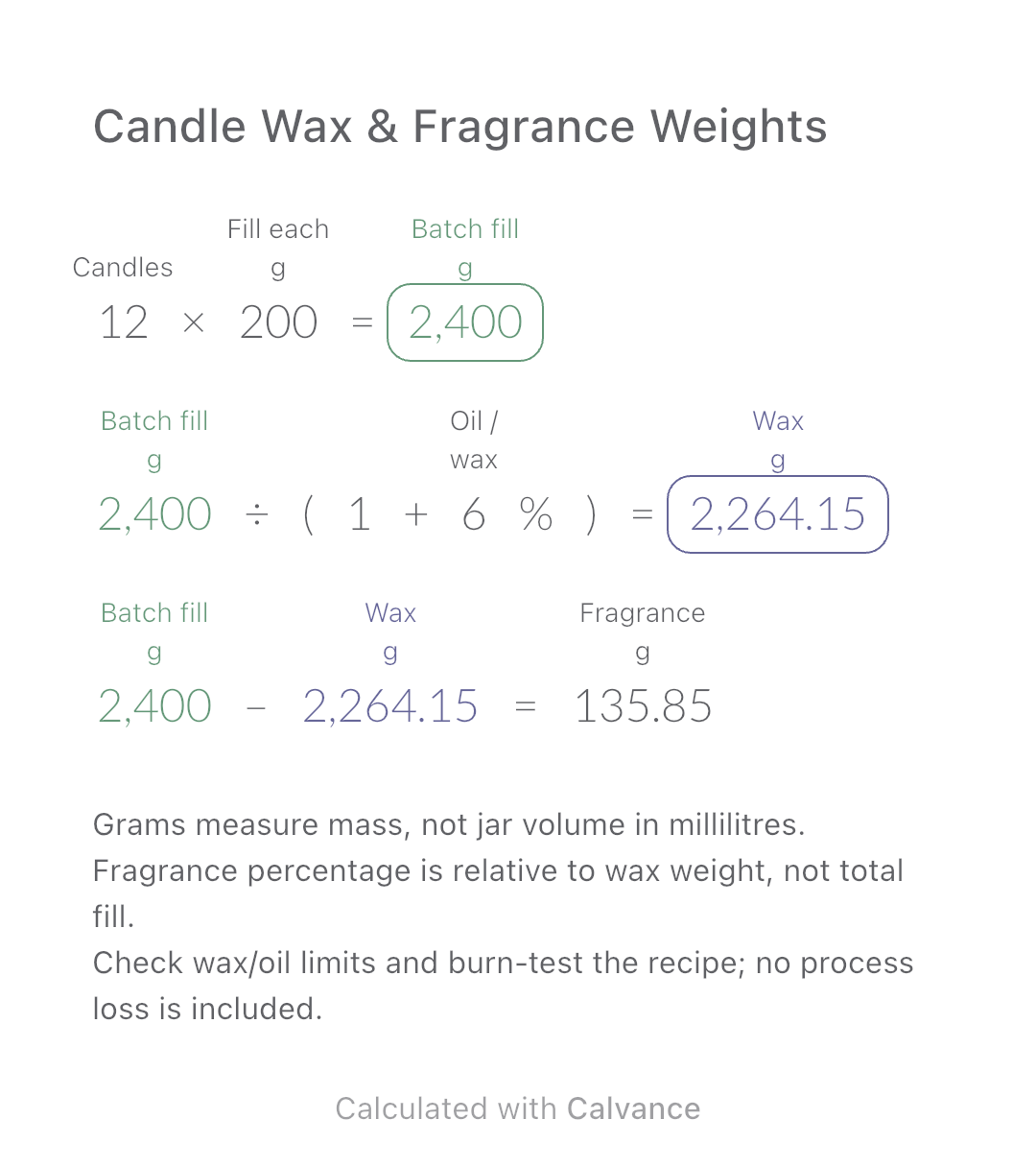
Split a candle batch’s net fill weight into wax and fragrance oil. Compare two wax-based fragrance percentages without changing total fill.
View template and method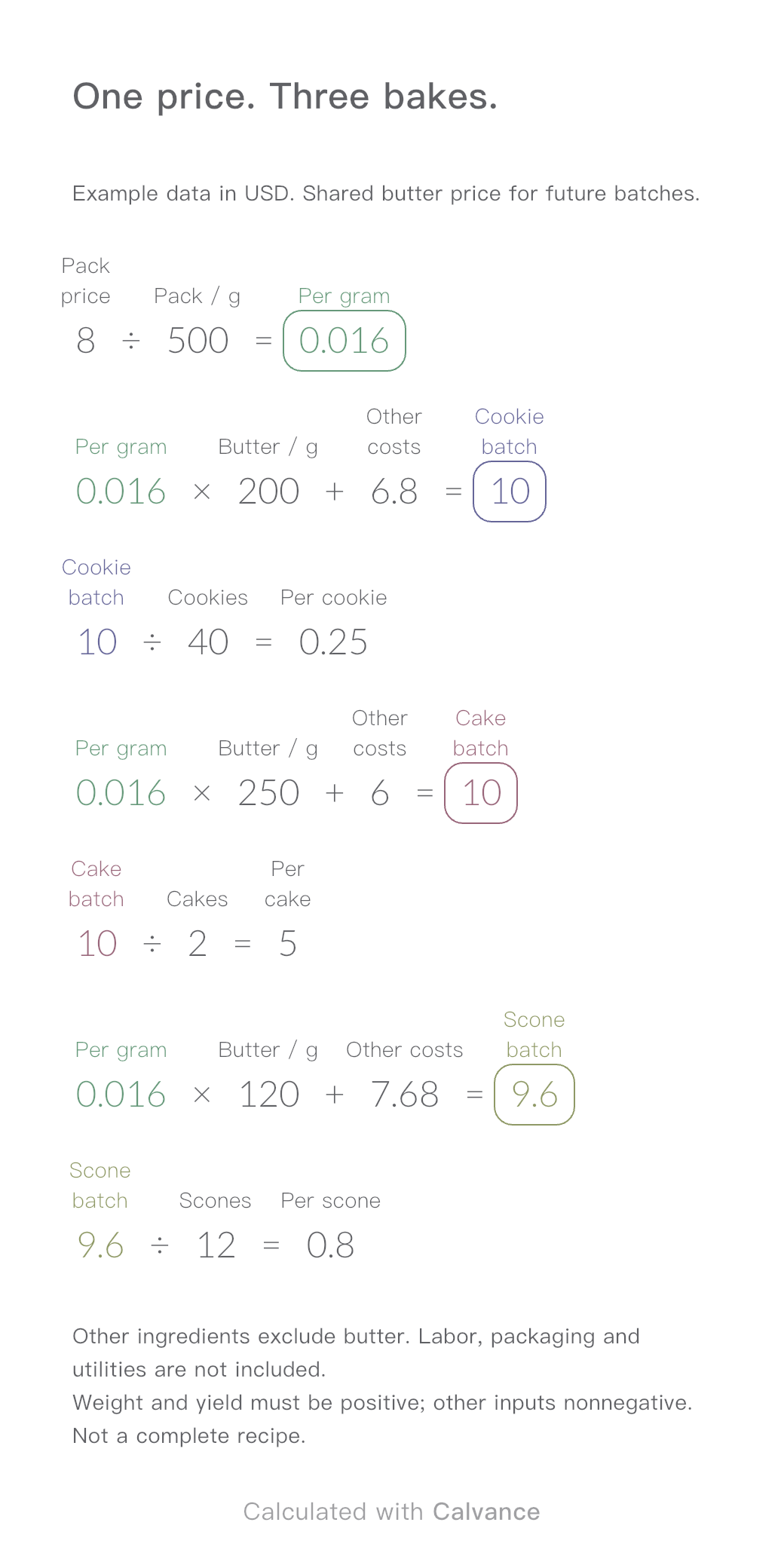
One ingredient price, three bakes. Change the butter price to update batch and per-serving costs.
View template and methodChoose a plan when you need more canvases, high-resolution image exports, or sync across devices.