
Worked exampleExported from Calvance
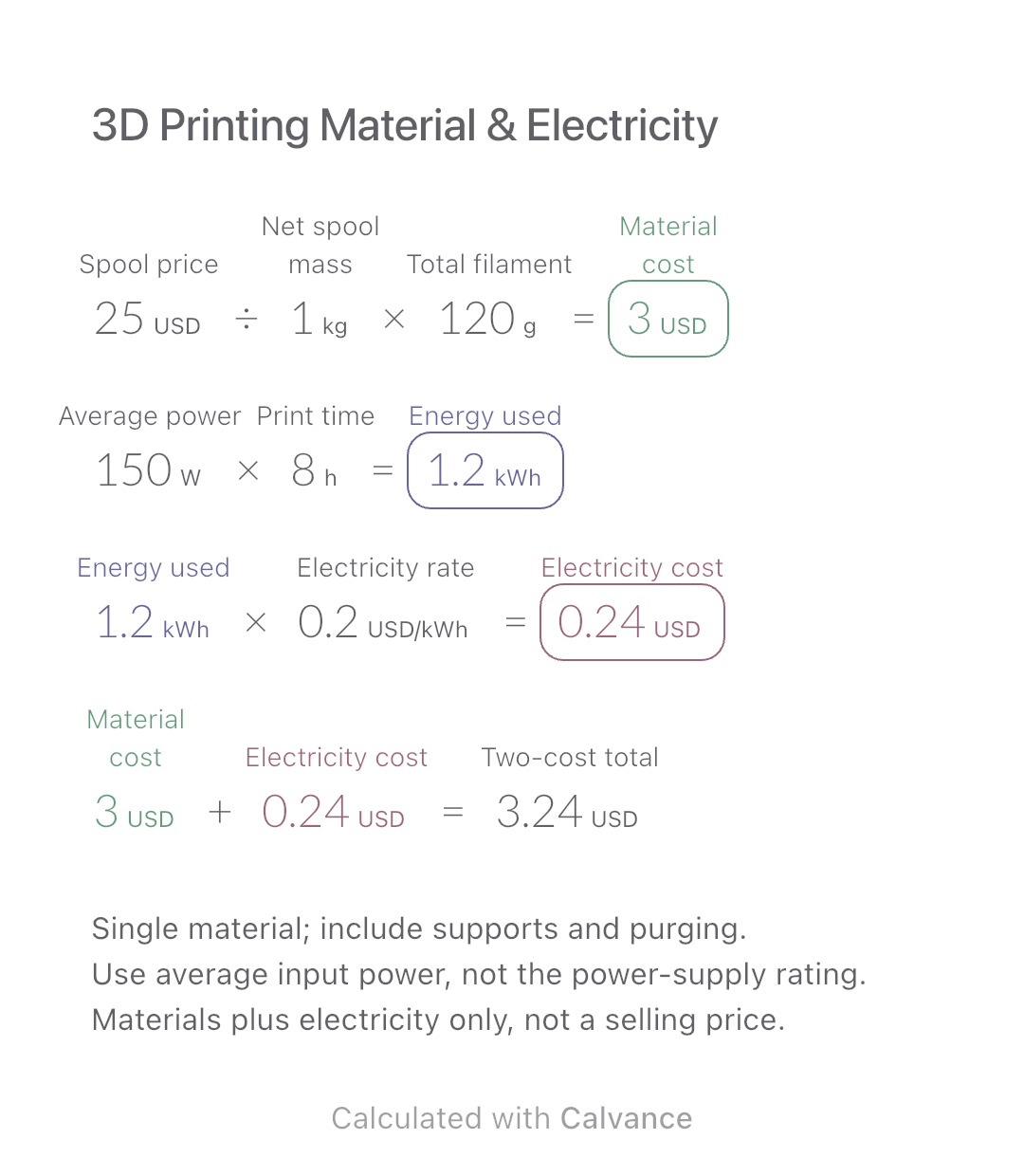
3D Printing Material & Electricity
Use filament weight and print duration from your slicer to estimate material and electricity costs separately, then add the two expenses.
View template and methodCompare two multipack offers by total items and cost per item. Includes a worked example, price-change comparison and an editable Calvance canvas.
Exported by the iOS App After importing, edit the numbers in Calvance.
Compare two offers for the same type and size of countable item, such as household supplies. Enter the number of packs, items per pack and total amount payable for each offer. This page explains the calculation and provides a downloadable canvas; it is not an online shopping-price feed. All USD prices below are independent simulated examples.
USD
| Inputs | Default |
|---|---|
| Packs in offer A | 3 |
| Items per pack in A | 24 |
| Total payable for A | 18 |
| Packs in offer B | 4 |
| Items per pack in B | 24 |
| Total payable for B | 22.08 |
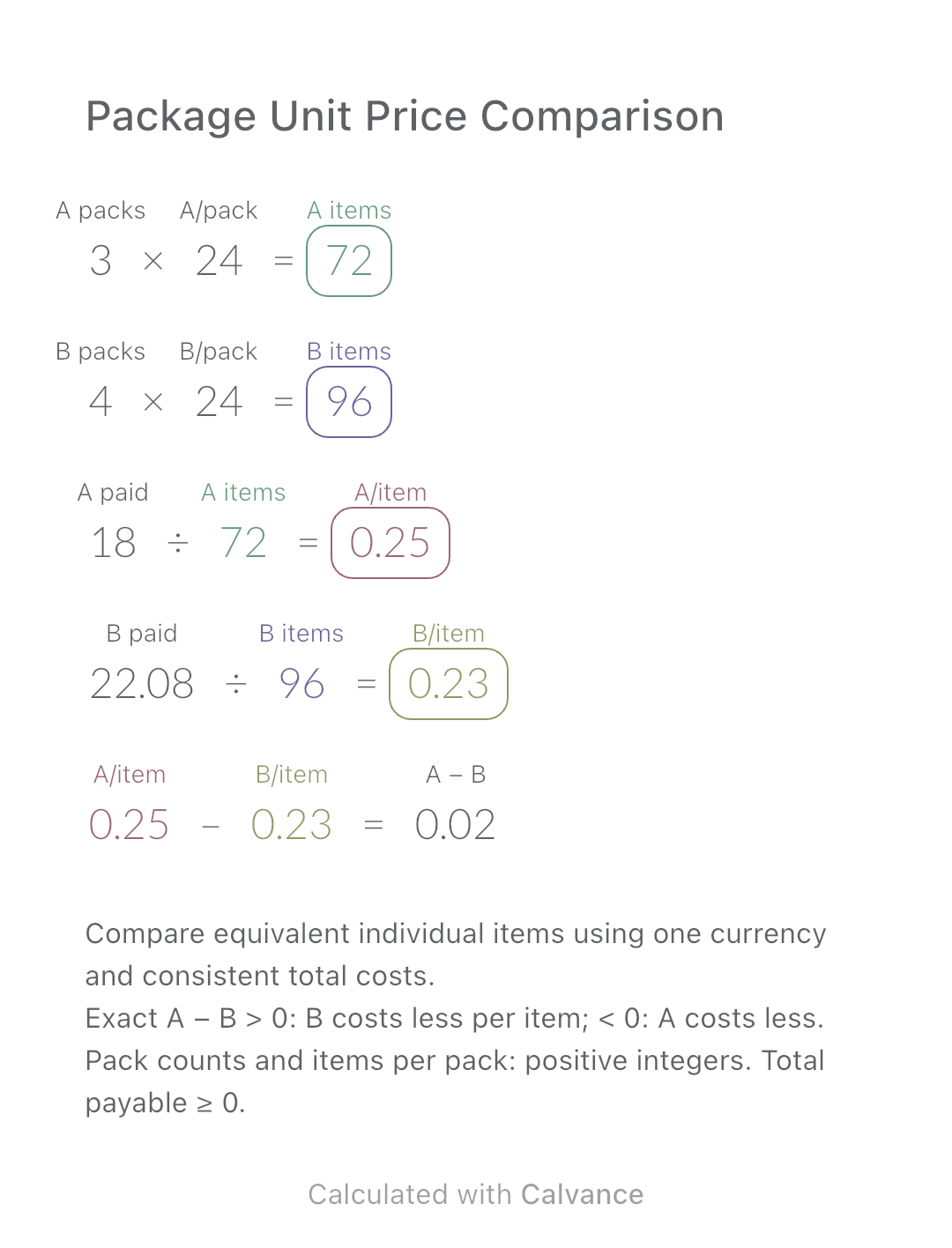
First multiply packs by items per pack for each offer. Divide each total payable by its own item count. Subtract B’s unit price from A’s: a positive exact difference means B is cheaper per item; a negative one means A is cheaper. A contains 3 × 24 = 72 items for USD 18, or USD 0.25 each. B contains 4 × 24 = 96 items for USD 22.08, or USD 0.23 each. B saves USD 0.02 per item but requires USD 4.08 more in total and buys 24 extra items.
3 [Packs in offer A] × 24 [Items per pack in A] → Total items in A
4 [Packs in offer B] × 24 [Items per pack in B] → Total items in B
18 [Total payable for A]/Total items in A → Cost per item in A
22.08 [Total payable for B]/Total items in B → Cost per item in B
Cost per item in A - Cost per item in B → Unit price difference (A − B)
Change only B’s total from USD 22.08 to USD 26.88. Its 96 items now cost USD 0.28 each. A stays at USD 0.25 and the difference becomes −USD 0.03 per item: A is now cheaper per item. Pack counts and contents are independent inputs even when the defaults match.
| Result | Default | Changed |
|---|---|---|
| Total items in A | 72 | 72 |
| Total items in B | 96 | 96 |
| Cost per item in A | 0.25 | 0.25 |
| Cost per item in B | 0.23 | 0.28 |
| Unit price difference (A − B) | 0.02 | -0.03 |
Results are displayed to at most two decimal places; later formulas use unrounded values.
A lower unit price does not imply a lower checkout total or a better purchase for your needs. Check size, quality, usable quantity, storage and expiry separately. The canvas compares counts, not grams, litres or mixed bundles. Discounts, shipping and taxes are not computed automatically: include applicable amounts consistently in both totals. It does not model returns, resale or future promotions.
Download and import into Calvance to edit the numbers. The canvas does not reject every invalid input; check the stated ranges.
Use the total payable for all packs in that offer, after discounts that actually apply. Treat shipping and tax consistently for A and B. Do not enter one pack’s price when the pack count is greater than one.
Not necessarily. A small difference may round to zero at two decimal places. Increase the result’s decimal precision in the App to inspect close prices. Only an exact zero means equal unit prices.
No. Compare both unit prices and the amount you must pay. In the default example B is cheaper per item but costs more overall. Buying more than you can use may erase the apparent saving.
Use filament weight and print duration from your slicer to estimate material and electricity costs separately, then add the two expenses.
View template and method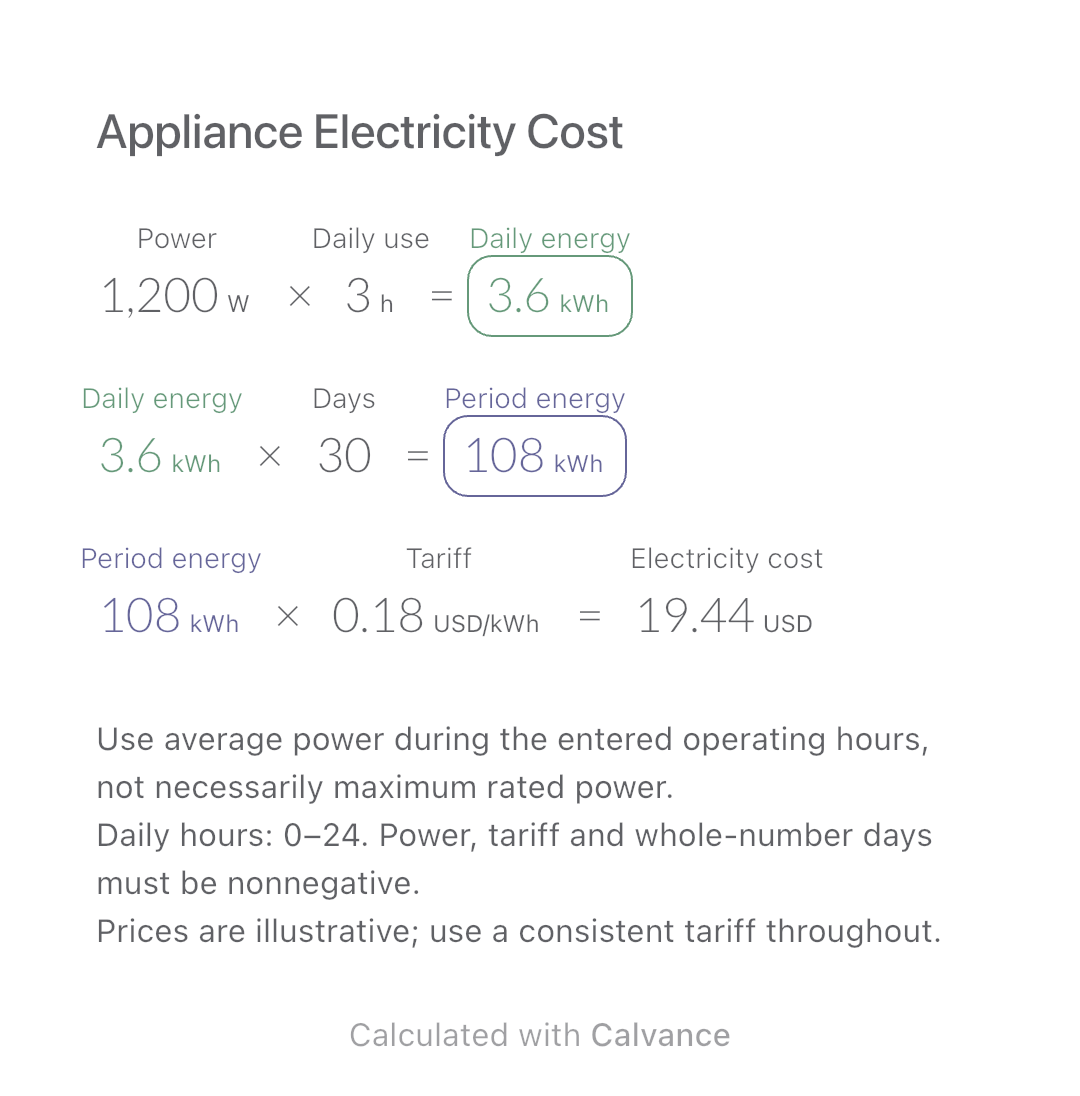
Estimate an appliance’s daily kWh, energy use over a chosen number of days and electricity cost. Change usage hours in an editable calculation canvas.
View template and method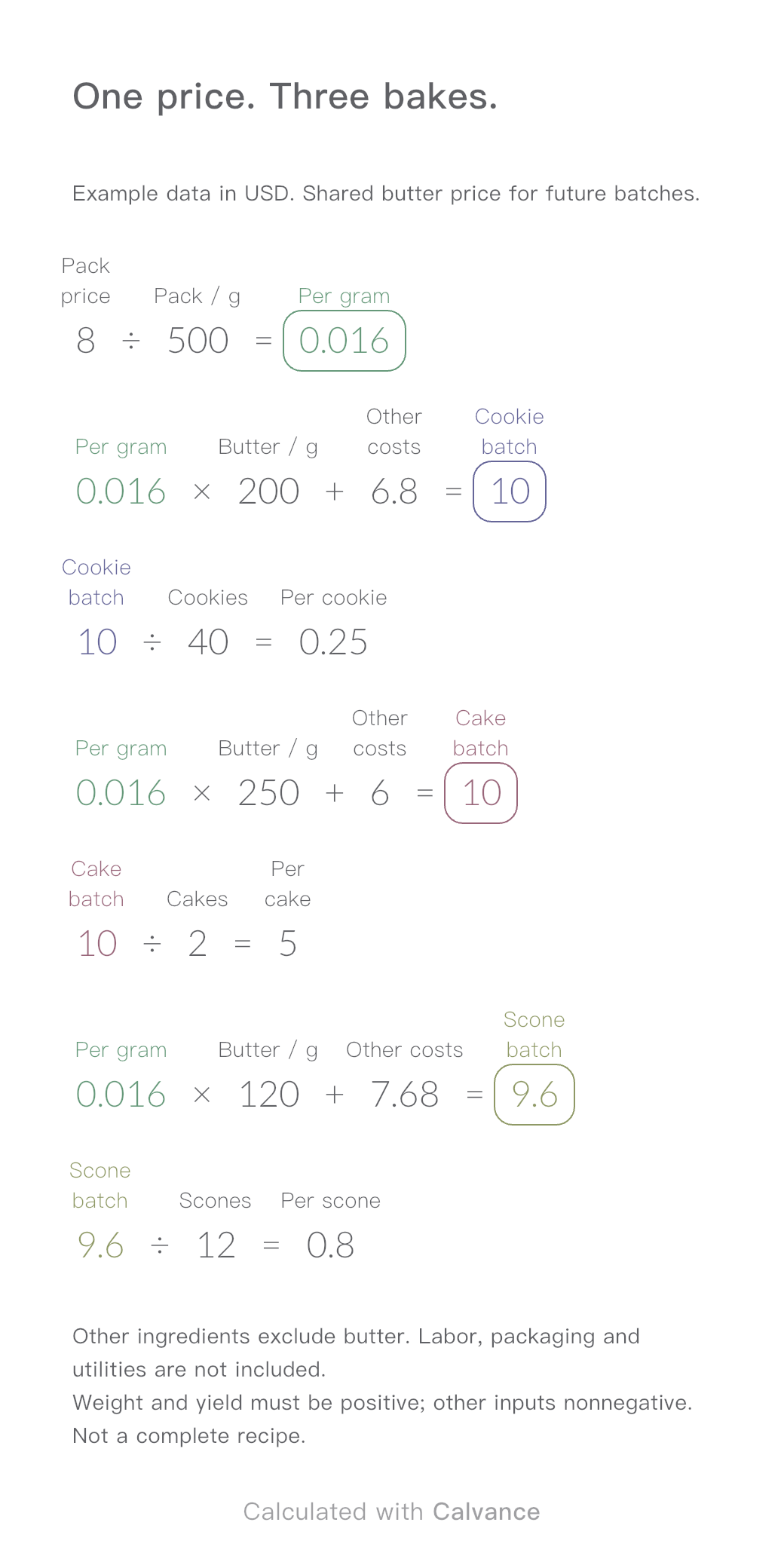
One ingredient price, three bakes. Change the butter price to update batch and per-serving costs.
View template and methodChoose a plan when you need more canvases, high-resolution image exports, or sync across devices.