Exported by the iOS App After importing, edit the numbers in Calvance.
When to use it
Net fill includes wax and fragrance, excluding jars and wicks. Candle count is a nonnegative integer, fill weight positive and percentage nonnegative. The 6% and 8% scenarios demonstrate arithmetic, not a recommended recipe.
Inputs
Inputs
Default
Number of candles
12
Net fill per candle (g)
200
Fragrance as a percentage of wax weight (%)
6
Calculation method
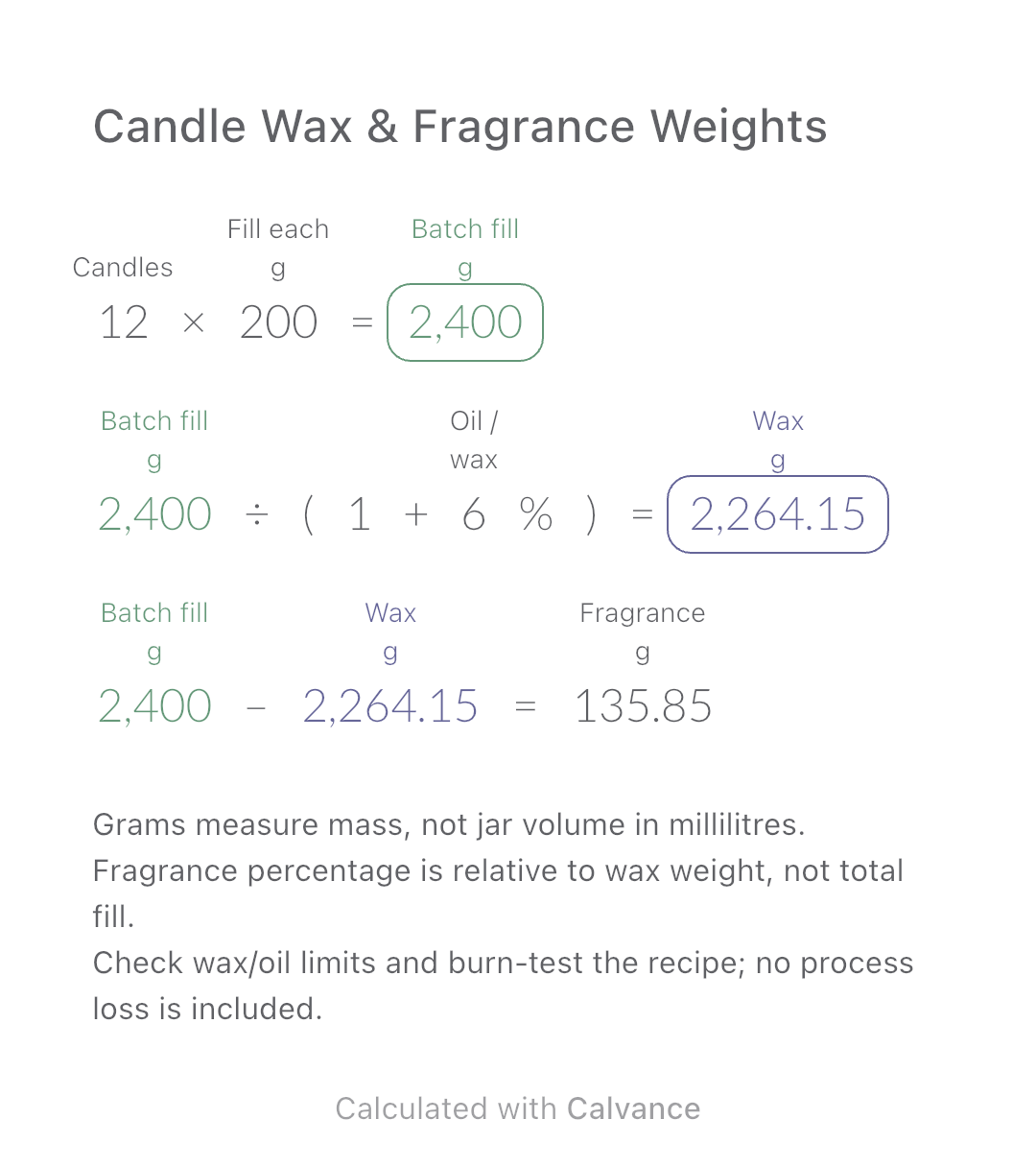
Total fill = candles × net grams each. Fragrance percentage uses wax weight as its denominator: wax = total fill ÷ (1 + percentage), fragrance = total fill − wax. Later calculations use the unrounded wax value.
12 [Number of candles] × 200 [Net fill per candle g] → Batch fill g
Batch fill g/(1 + 6 [Fragrance as a percentage of wax weight]%) → Wax g
Batch fill g - Wax g → Fragrance g
Change one input
Change fragrance load from 6% to 8%. Total fill remains the same; wax falls and fragrance rises. Confirm the actual scale precision and supplier limits before weighing.
Result
Default
Changed
Batch fill (g)
2,400
2,400
Wax (g)
2,264.15
2,222.22
Fragrance (g)
135.85
177.78
Results are displayed to at most two decimal places; later formulas use unrounded values.
Scope and limits
Grams measure mass, not jar volume in millilitres.
Fragrance percentage is relative to wax weight, not total fill.
Check wax/oil limits and burn-test the recipe; no process loss is included.
Download and import into Calvance to edit the numbers. The canvas does not reject every invalid input; check the stated ranges.
How to import your template
Save the file. Choose Download template and save the .calvx file to Files on your iPhone or iPad. From a computer, you can send it to your device with AirDrop.
Open Import. In All Canvases in Calvance, tap the add button to open the template screen, then choose Import.
Choose the file. Select the saved .calvx file to create your own canvas. Importing uses one canvas from your allowance.
Edit and check. Check the results against the worked example, then add your numbers. Duplicate the canvas to keep different versions.
Estimate a perfect-bound book’s spine and full cover dimensions from page count, paper caliper and bleed. Compare changes and download a reusable Calvance canvas.