
Worked exampleExported from Calvance
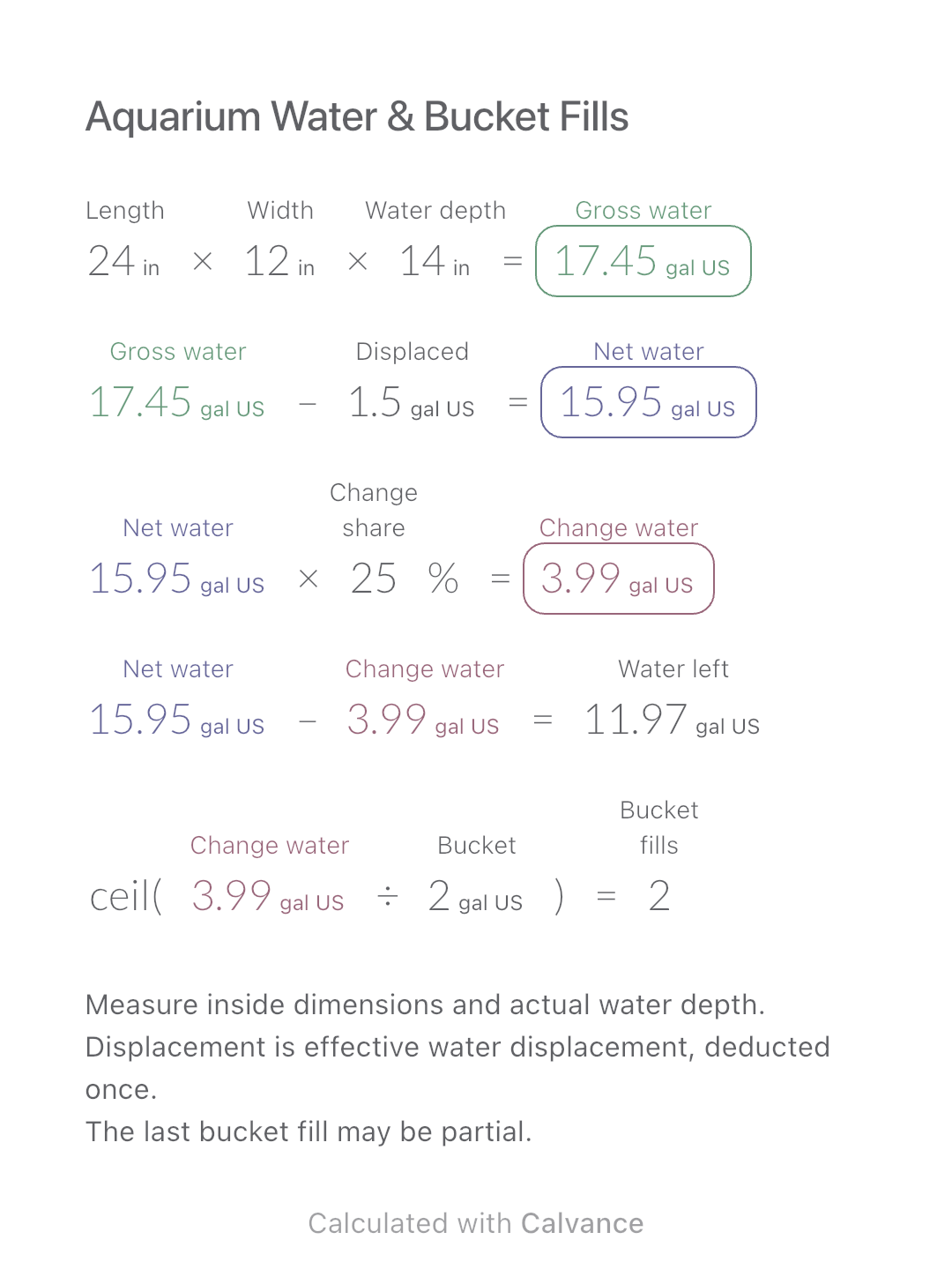
Aquarium Water & Bucket Fills
Estimate rectangular aquarium water volume, choose a water-change share and work out how many bucket fills to prepare.
View template and methodCompare dimensional and actual weight, then round up using your carrier’s billing increment. Save a parcel and check how smaller packaging changes its billable weight.
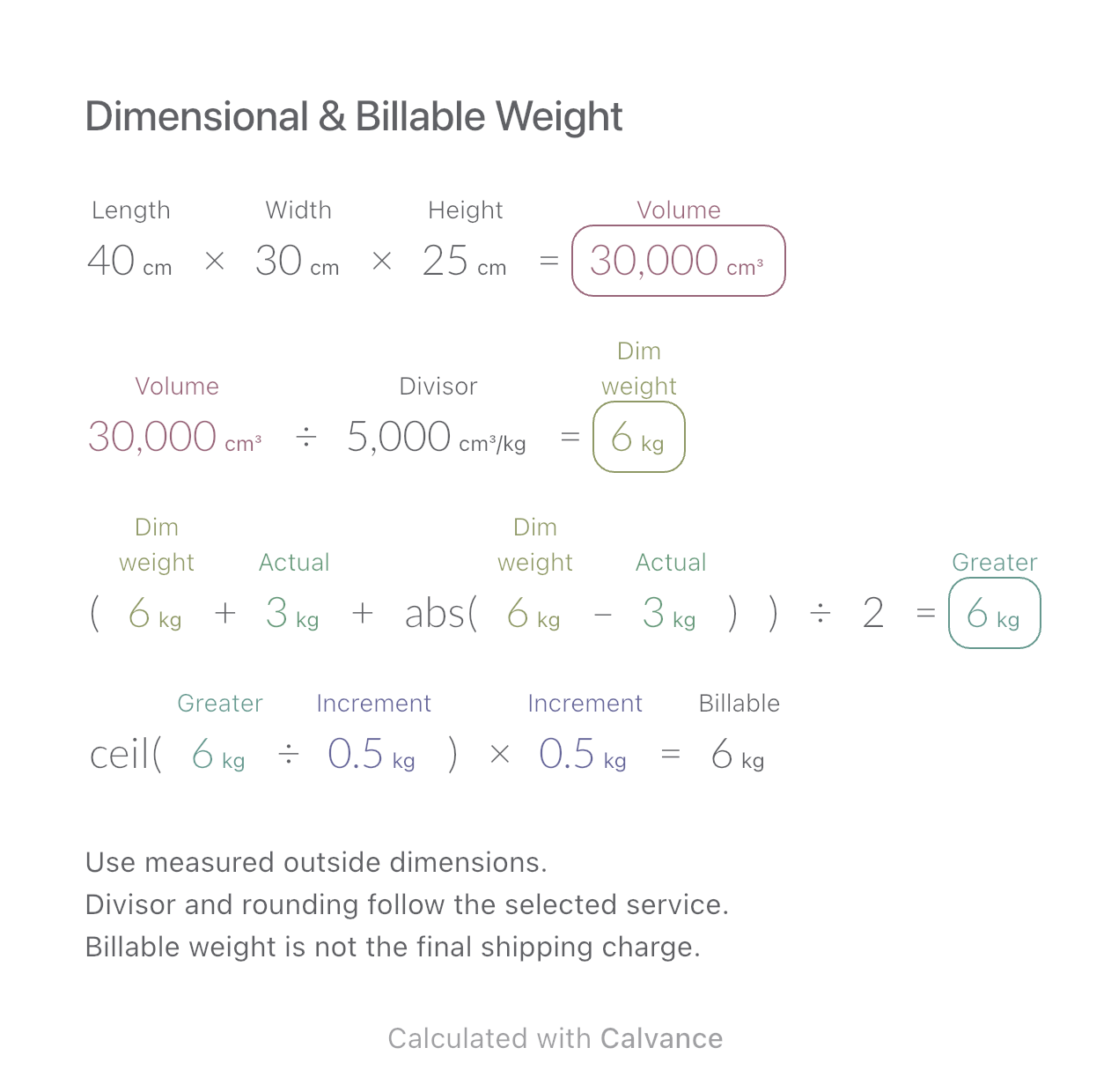
Exported by the iOS App After importing, edit the numbers in Calvance.
For a rectangular parcel when the selected carrier service bills the greater of actual and dimensional weight. Enter measured outside dimensions and the divisor and rounding increment from your own contract. This example uses centimetres and kilograms; 5000 cm³/kg and a 0.5 kg increment are illustrative rules, not a universal carrier tariff.
Related: Packaging Quotes & Budget.
| Inputs | Default |
|---|---|
| Outside parcel length (cm) | 40 |
| Outside parcel width (cm) | 30 |
| Outside parcel height (cm) | 25 |
| Contract volume-to-weight divisor (cm³/kg) | 5,000 |
| Actual parcel weight (kg) | 3 |
| Billing weight increment (kg) | 0.5 |
Multiply the three outside dimensions, divide that volume by the contract divisor, and compare with actual weight. The greater weight is (dimensional + actual + |dimensional − actual|)/2. Divide it by the billing increment, round up to a whole increment, and multiply back. At 40 × 30 × 25 cm, volume is 30,000 cm³ and dimensional weight is 6 kg. This exceeds the 3 kg actual weight; rounding in 0.5 kg increments leaves 6 kg.
40 [Outside parcel length cm] × 30 [Outside parcel width cm] × 25 [Outside parcel height cm] → Outside parcel volume cm³
Outside parcel volume cm³/5,000 [Contract volume-to-weight divisor cm³/kg] → Dimensional weight kg
(Dimensional weight kg + 3 [Actual parcel weight kg] + abs(Dimensional weight kg-Actual parcel weight kg))/2 → Greater of actual and dimensional weight kg
ceil(Greater of actual and dimensional weight kg/0.5 [Billing weight increment kg]) × Billing weight increment kg → Billable weight after rounding up kg
Change only height from 25 to 15 cm. Volume falls to 18,000 cm³, dimensional weight to 3.6 kg and billable weight to 4 kg. Actual weight, divisor and rounding increment stay unchanged. The comparison estimates weight, not a monetary shipping saving.
| Result | Default | Changed |
|---|---|---|
| Outside parcel volume (cm³) | 30,000 | 18,000 |
| Dimensional weight (kg) | 6 | 3.6 |
| Greater of actual and dimensional weight (kg) | 6 | 3.6 |
| Billable weight after rounding up (kg) | 6 | 4 |
Results are displayed to at most two decimal places; later formulas use unrounded values.
All dimensions, the divisor and billing increment must be positive; actual weight may be zero for a planning case but cannot be negative. Use compatible units throughout. This model rounds only after taking the greater weight. It does not implement separate dimension-rounding, minimum charges, special package rules, tax or surcharges; if your service applies those, adapt the method before using it.
Carrier calculation reference: DHL.
Download and import into Calvance to edit the numbers. The canvas does not reject every invalid input; check the stated ranges.
No. It depends on service, contract and units. A cm³/kg divisor cannot be reused as an in³/lb number.
Actual weight becomes the basis before rounding. Reducing box volume then may leave billable weight unchanged.
We recommend using the latest version of Calvance.
Estimate rectangular aquarium water volume, choose a water-change share and work out how many bucket fills to prepare.
View template and method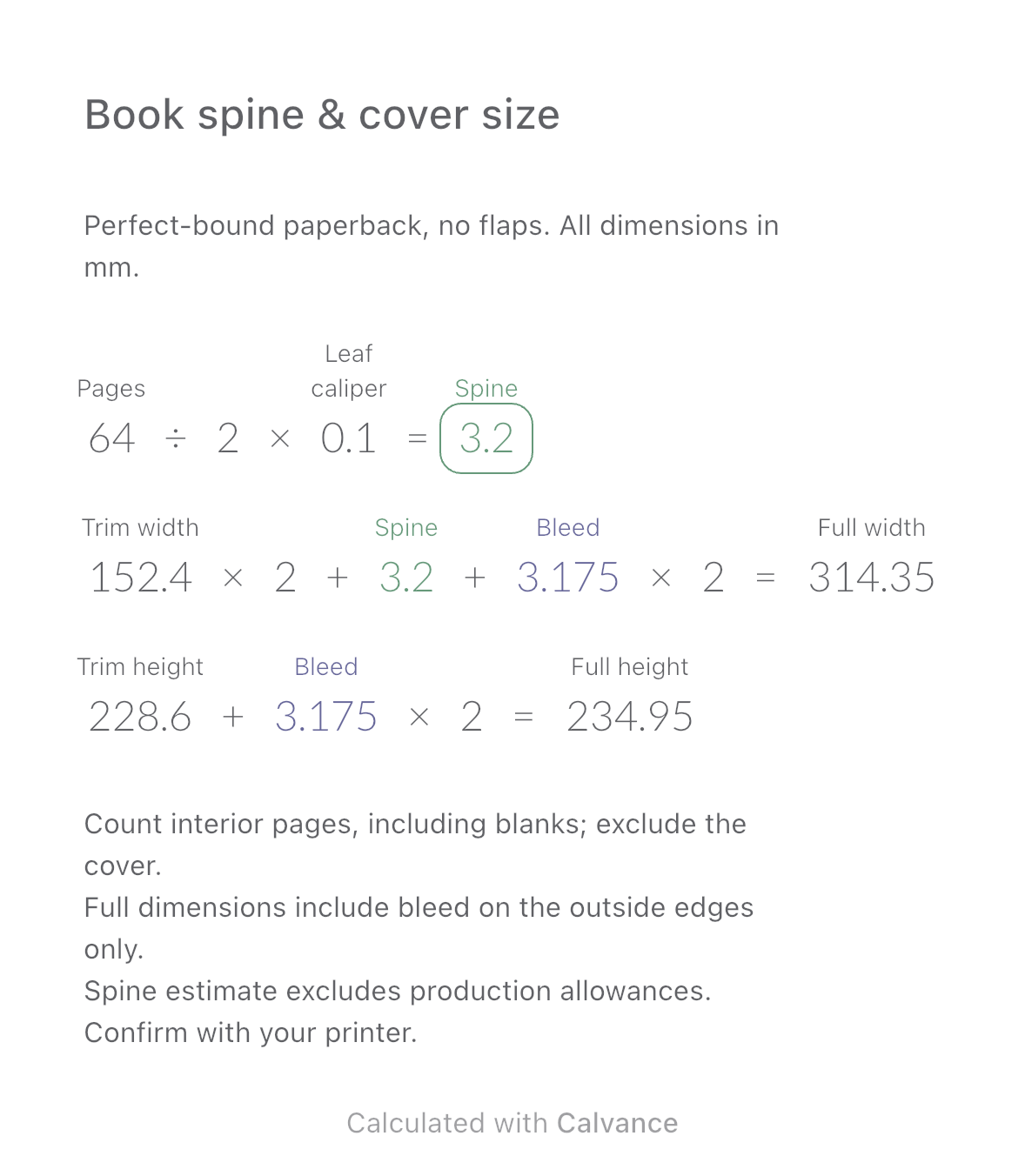
Estimate a perfect-bound book’s spine and full cover dimensions from page count, paper caliper and bleed. Compare changes and download a reusable Calvance canvas.
View template and method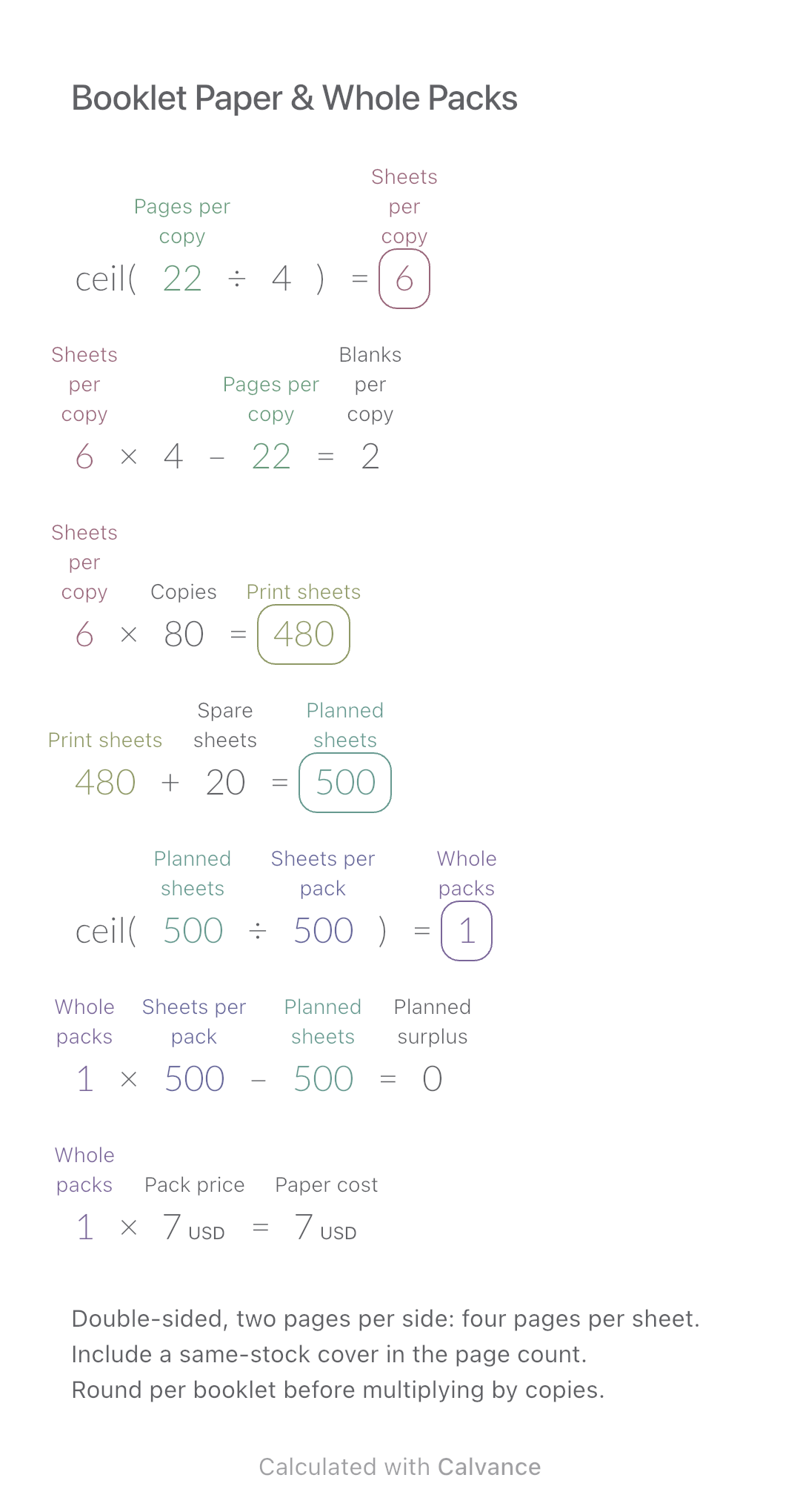
Convert booklet pages and copies into physical sheets, blank pages, whole paper packs and purchase cost.
View template and methodChoose a plan when you need more canvases, high-resolution image exports, or sync across devices.