
Worked exampleExported from Calvance
Design Delivery Workload
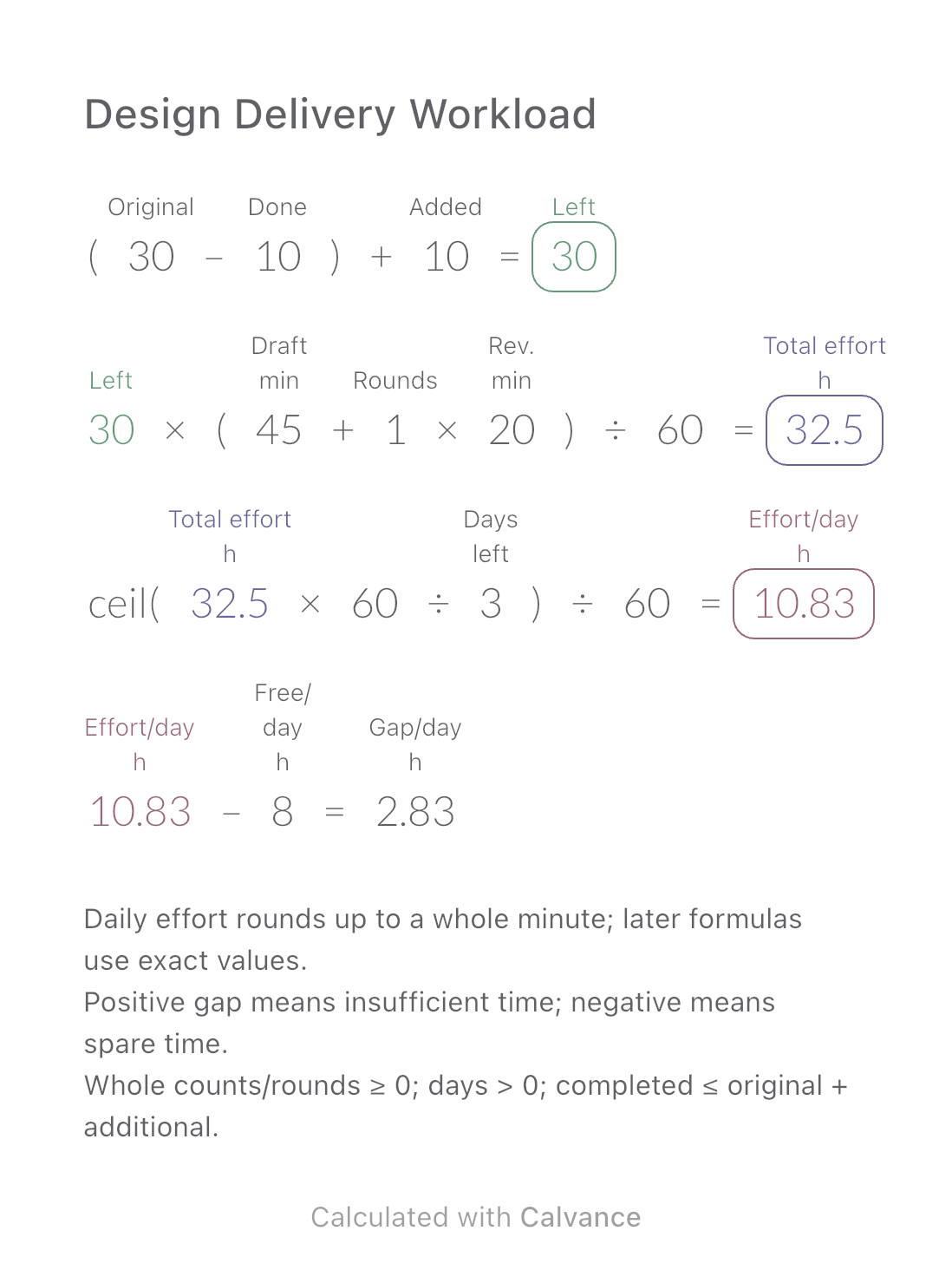
Estimate remaining design hours, daily effort and the gap against your available time when image quantities or revisions change.
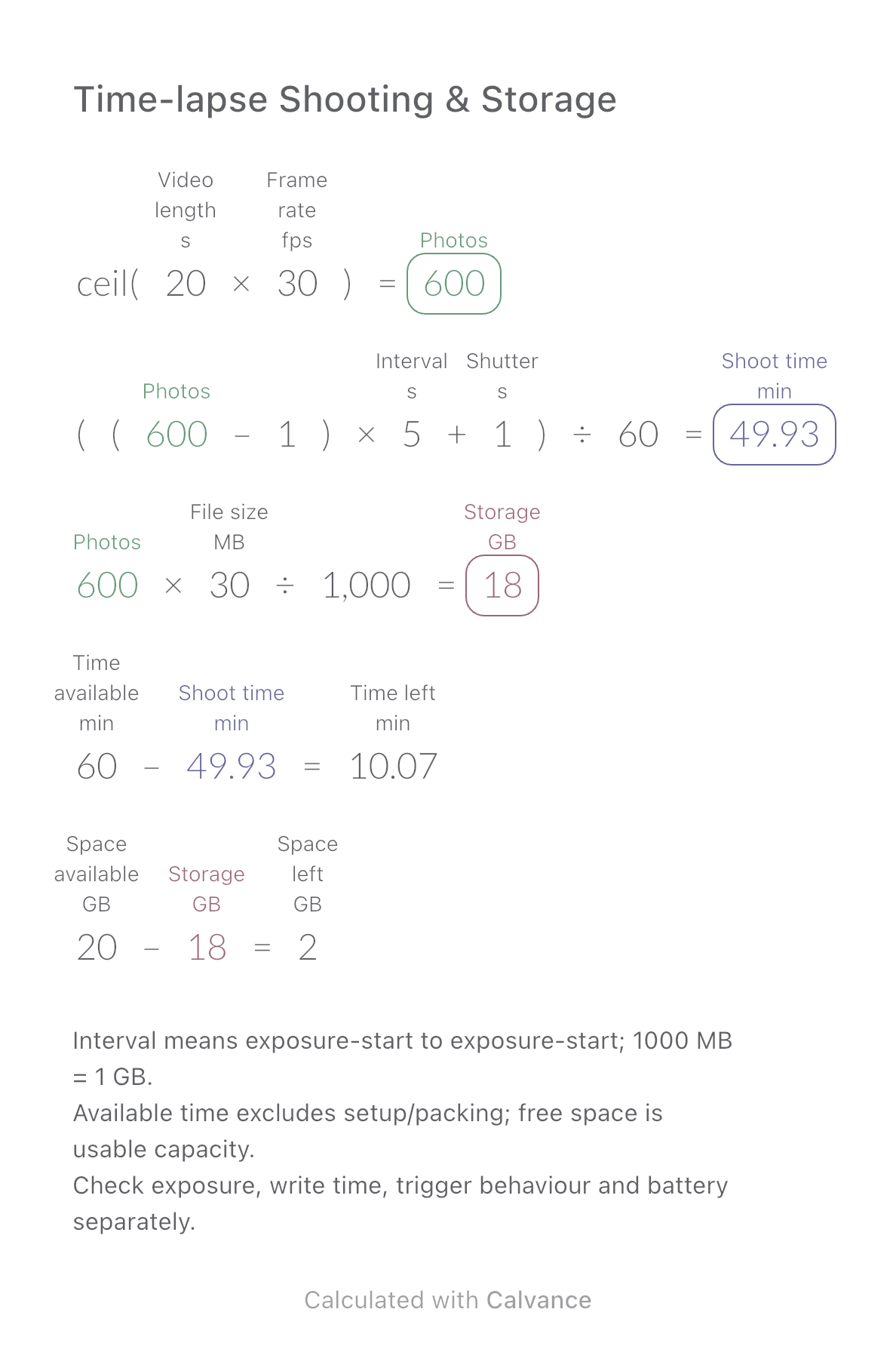
View template and methodPlan photo count, shooting time and storage from final video length. Compare the plan with available minutes and free space.
Exported by the iOS App After importing, edit the numbers in Calvance.
One photograph becomes one output frame, with no removed or interpolated frames. Duration and frame rate must be positive; the rounded-up count may make the final video slightly longer. These sample settings are not camera recommendations. Interval and exposure must be positive; exposure must not exceed the start interval. Check writing time and the camera’s actual behaviour too. Include both files when saving RAW+JPEG. File size per photo must be positive; available time and space must be nonnegative.
| Inputs | Default |
|---|---|
| Final video duration (s) | 20 |
| Output frame rate (fps) | 30 |
| Exposure-start interval (s) | 5 |
| Exposure time (s) | 1 |
| File size per photo (MB) | 30 |
| Time available (min) | 60 |
| Space available (GB) | 20 |
Round duration × frame rate up to whole photos. N photos have N−1 start-to-start intervals. Add the last exposure, then divide seconds by 60. Storage = photos × MB per photo ÷ 1000. Subtract each requirement from the available allowance.
ceil(20 [Final video duration s] × 30 [Output frame rate fps]) → Photos
((Photos - 1) × 5 [Exposure-start interval s] + 1 [Exposure time s])/60 → Shoot time min
Photos × 30 [File size per photo MB]/1000 → Storage GB
60 [Time available min] - Shoot time min → Time left min
20 [Space available GB] - Storage GB → Space left GB
Change final video length from 20 to 30 seconds. Photo count, shooting time and storage increase together. Negative remaining time or space means the plan exceeds that allowance.
| Result | Default | Changed |
|---|---|---|
| Photos | 600 | 900 |
| Shoot time (min) | 49.93 | 74.93 |
| Storage (GB) | 18 | 27 |
| Time left (min) | 10.07 | -14.93 |
| Space left (GB) | 2 | -7 |
Results are displayed to at most two decimal places; later formulas use unrounded values.
Download and import into Calvance to edit the numbers. The canvas does not reject every invalid input; check the stated ranges.
Estimate remaining design hours, daily effort and the gap against your available time when image quantities or revisions change.
View template and method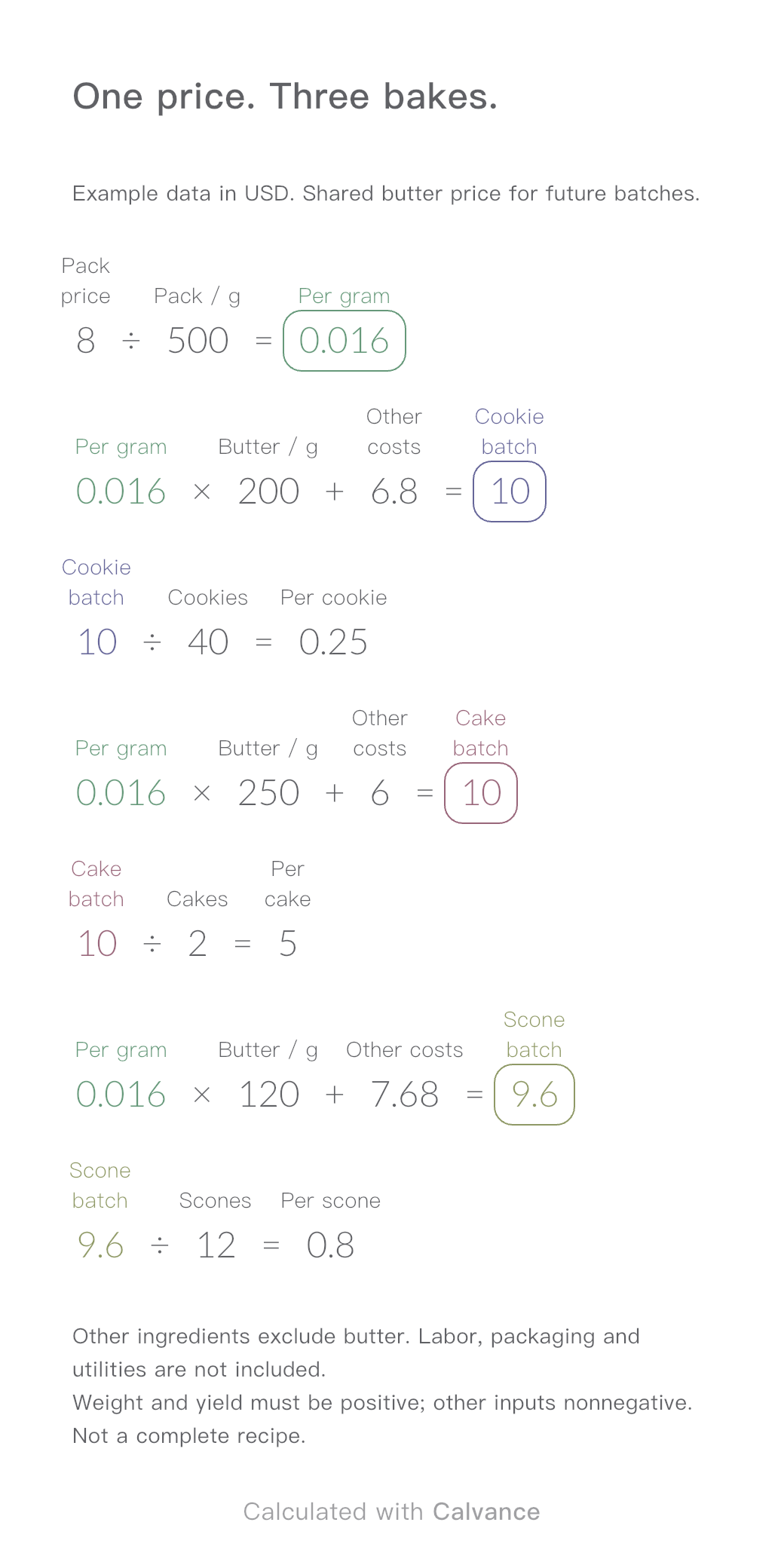
One ingredient price, three bakes. Change the butter price to update batch and per-serving costs.
View template and method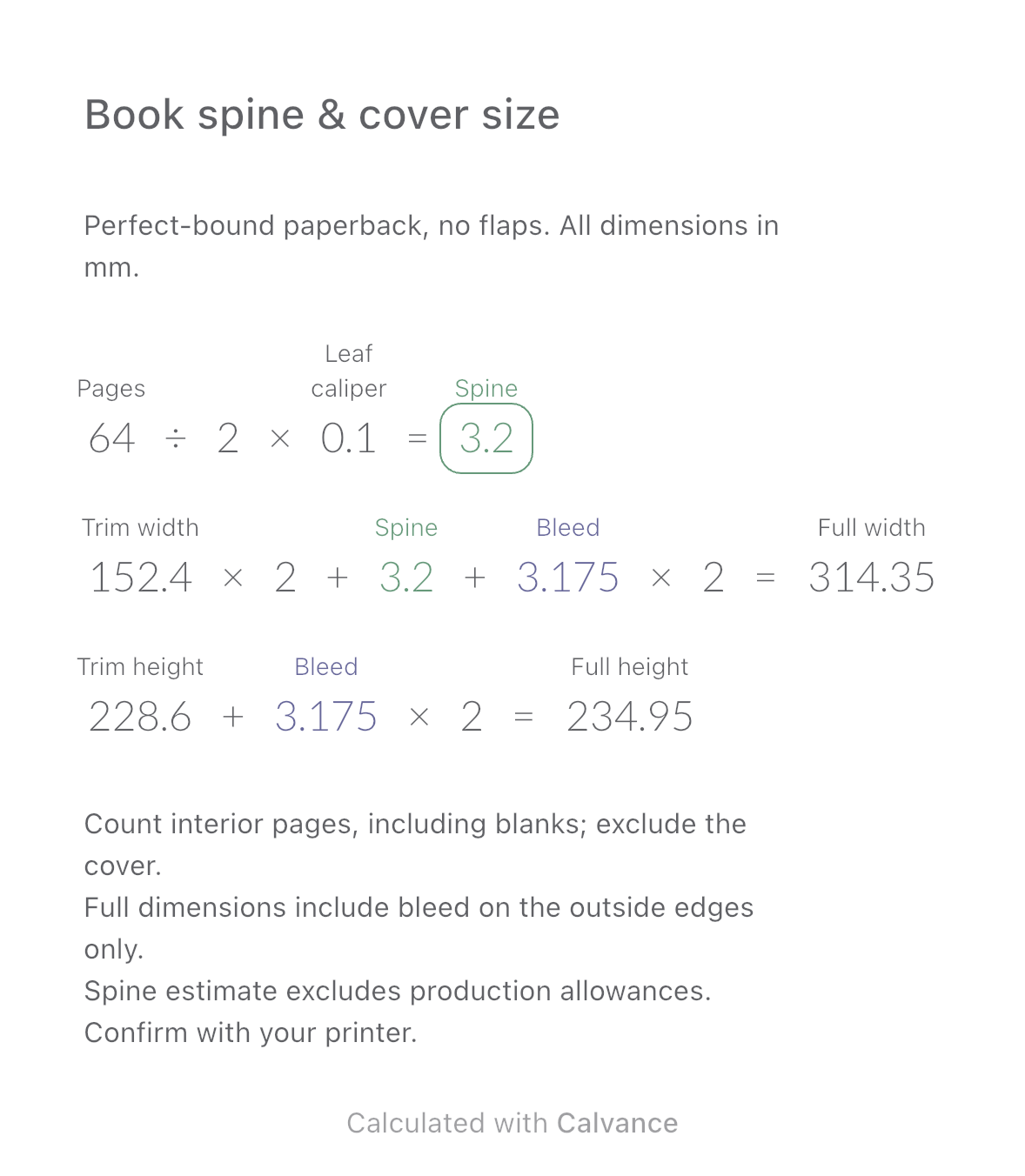
Estimate a perfect-bound book’s spine and full cover dimensions from page count, paper caliper and bleed. Compare changes and download a reusable Calvance canvas.
View template and methodChoose a plan when you need more canvases, high-resolution image exports, or sync across devices.