
Worked exampleExported from Calvance
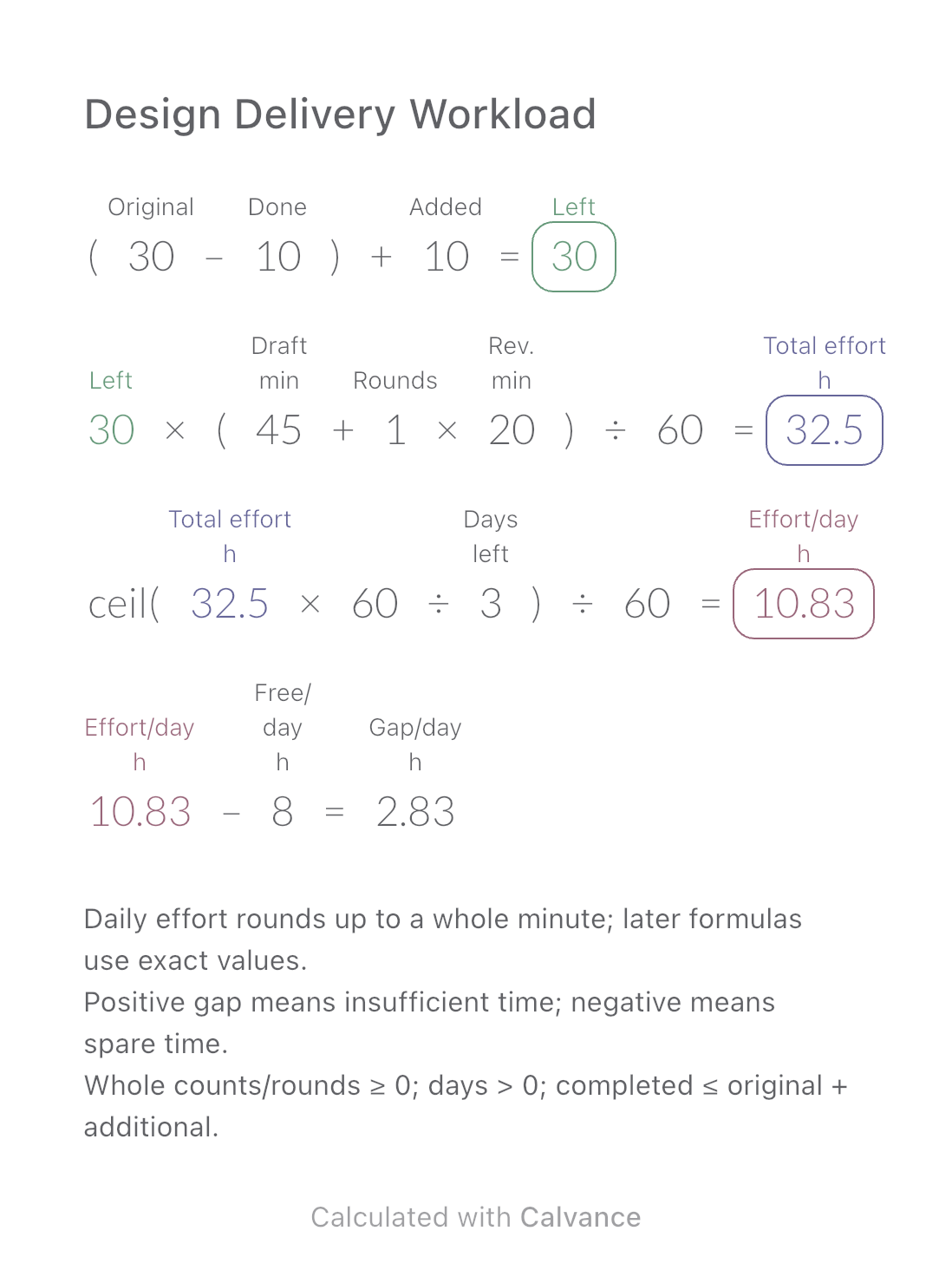
Design Delivery Workload
Estimate remaining design hours, daily effort and the gap against your available time when image quantities or revisions change.
View template and methodAdd three game installation sizes, allow for your chosen reserve and check how much extra space you need before installing.
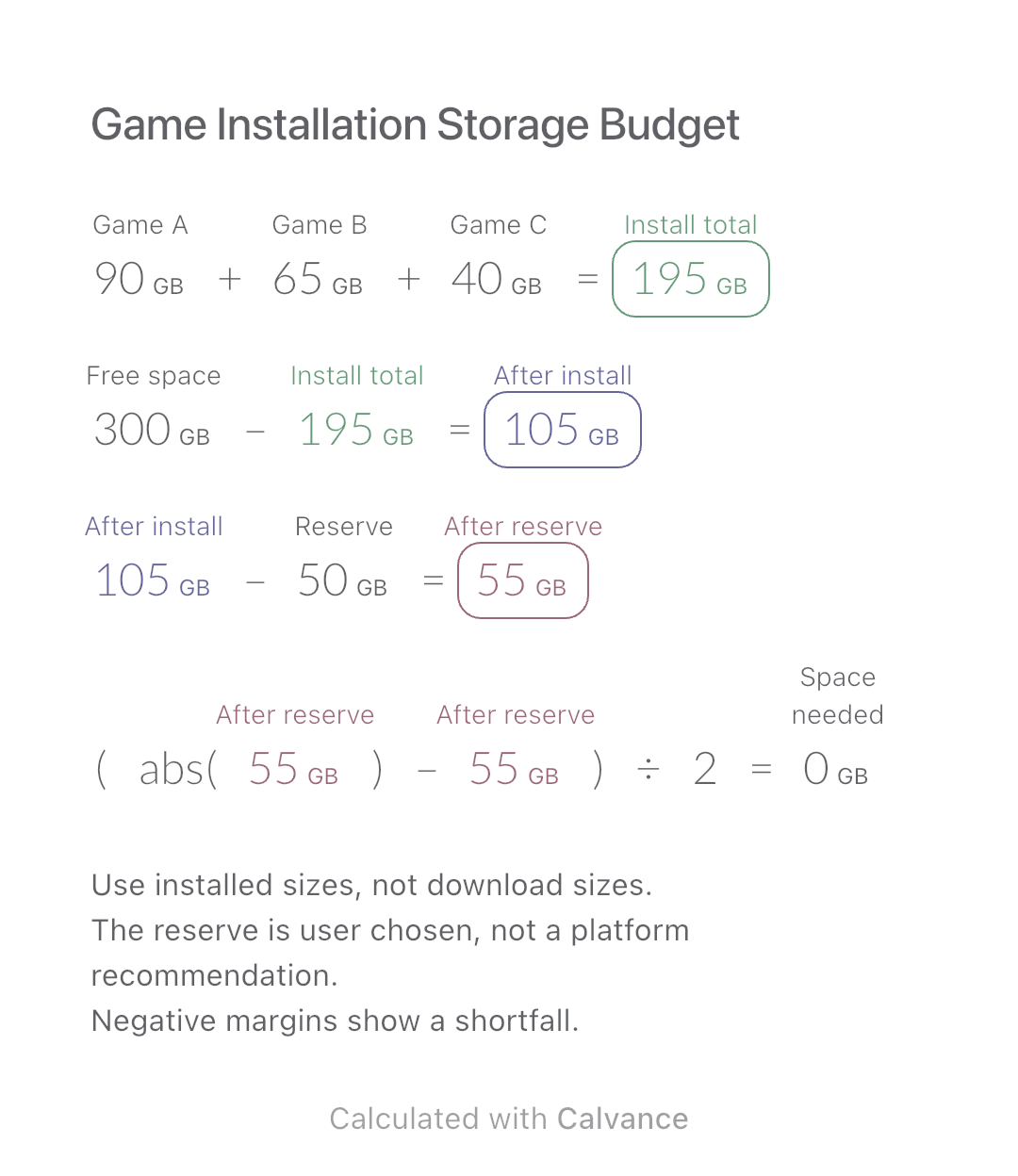
Exported by the iOS App After importing, edit the numbers in Calvance.
Use the free space currently shown on the destination drive, not its advertised capacity. Games A, B and C are simulated installations of 90, 65 and 40 GB; they are not named game specifications.
| Inputs | Default |
|---|---|
| Game A (GB) | 90 |
| Game B (GB) | 65 |
| Game C (GB) | 40 |
| Free space (GB) | 300 |
| Reserve (GB) | 50 |
Add the installation sizes. Subtract that total from current free space, then subtract the chosen reserve. If this final margin is negative, the amount to free is its magnitude; otherwise it is zero.
90 [Game A GB] + 65 [Game B GB] + 40 [Game C GB] → Install total GB
300 [Free space GB]-Install total GB → After install GB
After install GB-50 [Reserve GB] → After reserve GB
(abs(After reserve GB)-After reserve GB)/2 → Space needed GB
Change free space from 300 to 180 GB, leaving the 50 GB reserve unchanged. The final margin changes from 55 to −65 GB and the extra space needed changes from 0 to 65 GB.
| Result | Default | Changed |
|---|---|---|
| Install total (GB) | 195 | 195 |
| After install (GB) | 105 | -15 |
| After reserve (GB) | 55 | -65 |
| Space needed (GB) | 0 | 65 |
Results are displayed to at most two decimal places; later formulas use unrounded values.
Inputs must be nonnegative and use compatible units. GB is decimal; GiB is binary. Set the actual unit rather than just relabelling a number. Installation and update workspace varies by game; this arithmetic does not guarantee installation will succeed.
Download and import into Calvance to edit the numbers. The canvas does not reject every invalid input; check the stated ranges.
System files and existing data already occupy space, and GB/GiB reporting differs. Read the destination drive’s current free space and check the game’s installation requirements.
We recommend using the latest version of Calvance.
Estimate remaining design hours, daily effort and the gap against your available time when image quantities or revisions change.
View template and method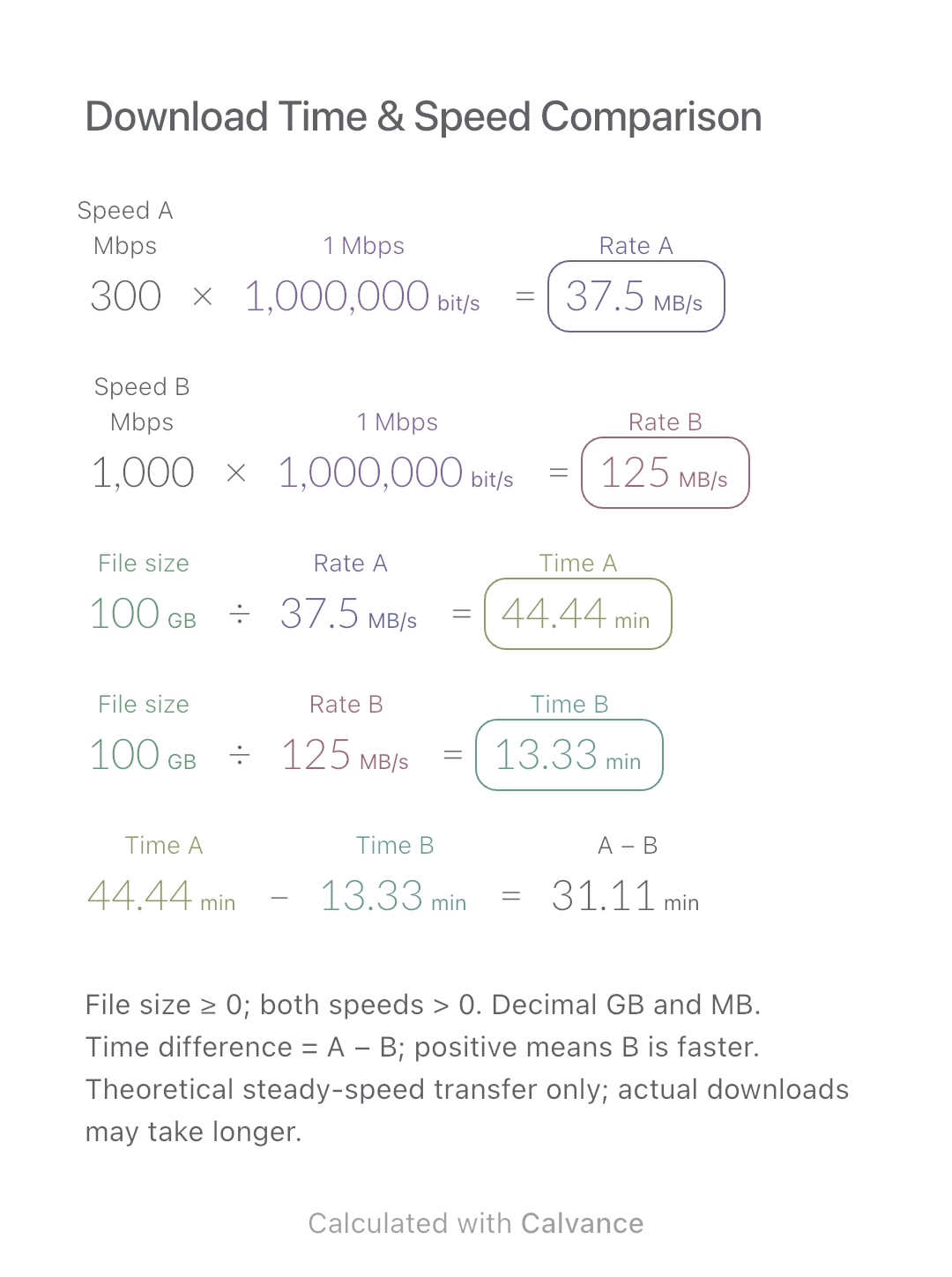
Compare the theoretical download time for one file at two connection speeds. Includes a worked example, Mbps-to-MB/s conversion and an editable Calvance canvas.
View template and method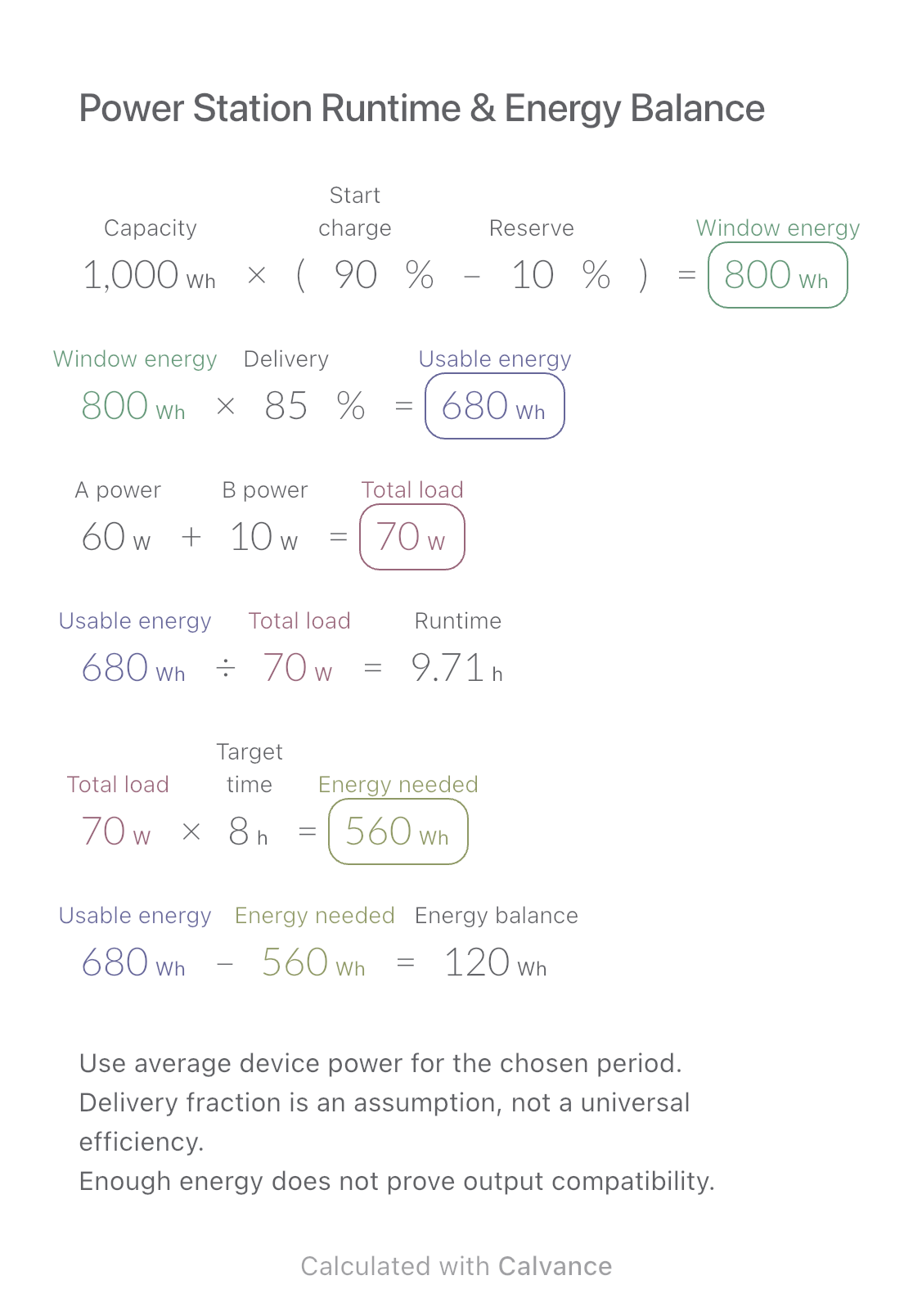
Estimate runtime for two average loads and compare deliverable energy with a target operating period.
View template and methodChoose a plan when you need more canvases, high-resolution image exports, or sync across devices.